





12 Nov Four Ways to Reduce Google Workspace Security Risks
Accounts protected by multi-factor authentication are 99% less likely to be hacked, according to the Cybersecurity and Infrastructure Security Agency (CISA). Putting strong controls around account access is one of the most practical Google Workspace security best practices for SMBs. Yet account protection works best as part of a broader plan.
Passwords and sign-in settings matter, but everyday actions can expose business information too. A convincing phishing email, an overly open calendar, or an unfamiliar app with access to company data can create risks that are easy to miss.
These Google Workspace security best practices for SMBs cover four practical steps: protect account access with two-step verification, train employees to spot phishing, limit external calendar sharing, and review third-party apps connected to your workspace. Together, they make security part of routine work rather than a separate task.
Key Takeaways
- Use two-step verification to strengthen account access, especially for accounts with administrative privileges or access to sensitive data.
- Train employees to recognize suspicious messages and build safer habits for handling unexpected email.
- Limit what external people can see in shared calendars to reduce unnecessary exposure of business details.
- Review third-party app access to Gmail and Drive so connected tools have only the permissions they need.
1. Two-step verification and protection against account takeovers
Start with two-step verification for every Google Workspace user, prioritizing admins and accounts handling sensitive data. It requires a password plus something the user has, such as a physical security key or access code. Accounts protected by multi-factor authentication are 99% less likely to be hacked, according to the Cybersecurity and Infrastructure Security Agency (CISA). This is one of the Google Workspace security best practices for SMBs that directly strengthens sign-in protection.
Require unique, strong passwords and prohibit reuse across work and personal accounts. In the admin console, enforce two-step verification and set a clear enrollment deadline. Maintain more than one super administrator account, with each managed by a separate person. Reserve super admin access for specific tasks and use limited admin roles for routine work. This least-privilege approach can reduce the impact of a compromised account.
For recovery, keep administrator recovery phone numbers and email addresses current, and store printed backup codes securely. If an account may be compromised, investigate its recent activity, secure the account, and review affected shared files and settings. Keep relevant records according to your retention needs. Google Workspace recovery options and backup costs depend on the recovery method, storage, retention period, and amount of data to restore. Separate backup and recovery planning can support continuity; ransomware protection is closely related to that work.
For passwords, sign-ins, and sessions, require unique passwords and two-step verification, then remove access when someone leaves or changes roles. After a lost device or suspicious sign-in, review active sessions and revoke those that should no longer be active. Apply Google Workspace security best practices for SMBs consistently across the domain so account controls stay aligned with daily work.
For endpoint security, require screen locks and current security updates on devices used to access work accounts. Limit access from devices that do not meet company requirements, and remove lost or retired devices from approved access. These settings extend account protection to the device itself, addressing a gap passwords alone cannot close.
2. Employee phishing and email security training
Train employees to pause before opening unexpected links or attachments, or responding to sign-in requests. Phishing messages may imitate a vendor, manager, or Google service and create pressure to act quickly. Use practical examples, such as an urgent invoice asking someone to enter a password on an unfamiliar page. Teach staff to report suspicious messages through the company’s approved process, not to reply or forward them.
Make training practical and repeat it regularly. Show employees how to inspect sender addresses, check where links lead, and verify unusual payment or password requests through a separate trusted channel. Chrome warnings can flag some dangerous sites, but they do not replace sound judgment or email protections. If someone suspects they clicked a harmful link, prompt reporting gives admins a chance to investigate the account and limit further exposure.
In the United States, applicable privacy and compliance requirements depend on your industry, the sensitive data you handle, and your contractual commitments. Identify those obligations, then align access, retention, and employee training policies with the information your business protects.
Google Workspace editions vary in their security features. Compare the controls available in each edition before choosing a plan, and review its current terms when budgeting, since costs depend on the selected plan and billing terms.
Configure Gmail protections together. An SPF record identifies which mail servers can send email for your domain; without one, messages may bounce or land in spam. Set up DKIM to authenticate outgoing messages, then use DMARC to tell receiving systems how to handle messages that fail authentication. In Gmail’s admin settings, enable available spam and spoofing protections, and route suspicious messages for review. Pair these controls with managed IT support when your team needs help coordinating email safeguards and staff response procedures.
The IBM 2023 Data Breach Report says phishing emails contributed to 44% of recorded data breaches, while the Verizon 2023 Data Breach Investigations Report found that 82% of breaches involve a human element. The page states that over 3.4 billion phishing emails are sent daily. These figures reinforce the value of repeating employee security training several times a year and making reporting suspicious messages a routine part of staff practice.
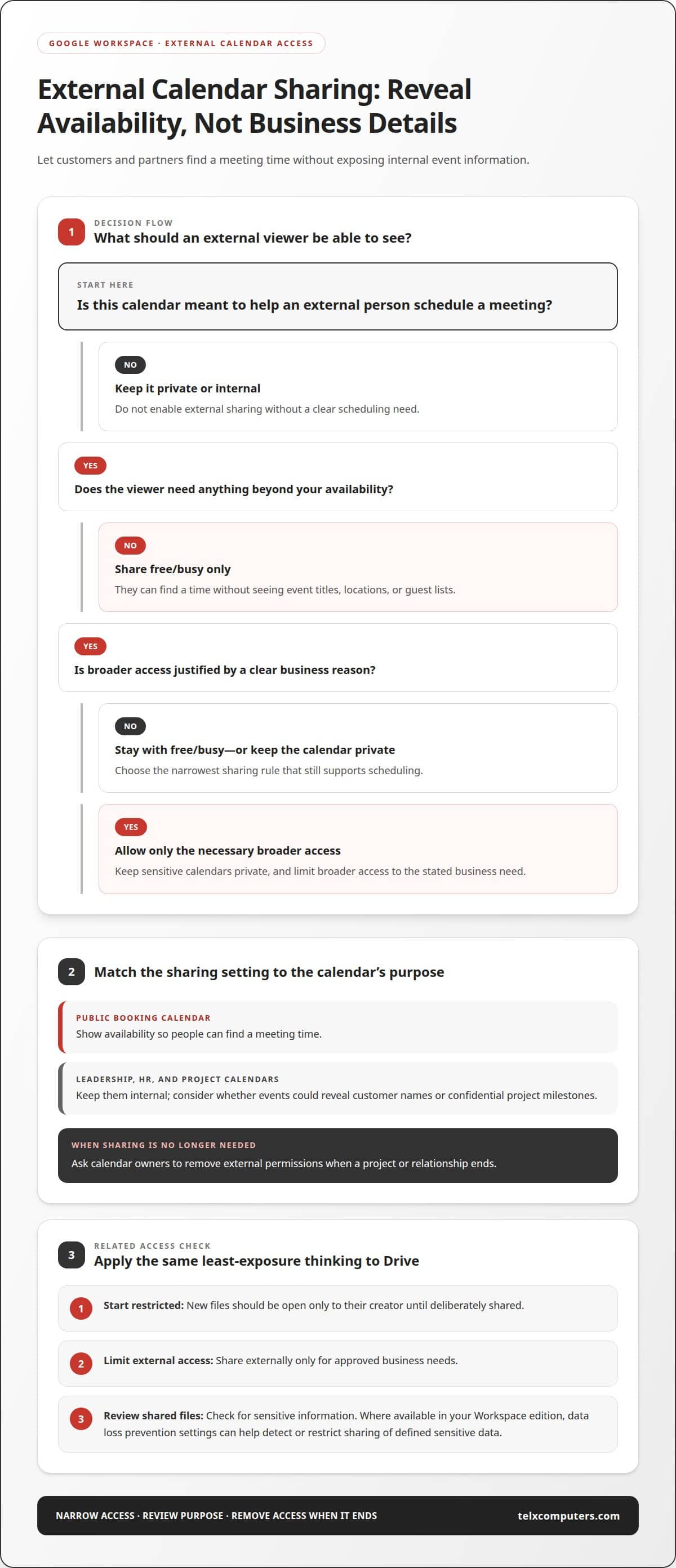
3. External calendar sharing restrictions
Set external calendar access to show free/busy information, not event titles, locations, or guest lists. Customers and partners can then find a meeting time without seeing internal details. In Google Workspace, admins should choose the narrowest sharing rule that still supports scheduling. Keep sensitive calendars private and allow broader access only for a clear business reason.
Review calendars according to their purpose. A public booking calendar may need to show availability, while leadership, HR, and project calendars can stay internal. Before enabling external sharing for a group, consider what events might reveal, such as customer names or confidential project milestones. Ask calendar owners to remove external permissions when a project or relationship ends.
Apply similar controls in Google Drive. Set new files so only their creator can open them until they are deliberately shared. Restrict external access to approved business needs, and review shared files for sensitive information. Where available in your Google Workspace edition, data loss prevention settings can help detect or restrict sharing of defined sensitive data. Choose controls that fit the data and the access your business requires.
Use the admin console to review external sharing policies and investigate unexpected access. If an employee reports an unfamiliar invitation or calendar permission, admins can identify the affected account, remove access, and review related activity. Check work access on every endpoint, including shared devices, and ensure former employees no longer have calendar permissions. Keep calendar administration separate from routine user access, and reserve super admin privileges for necessary changes.
An enterprise may need different sharing rules across departments, but consistent defaults make exceptions easier to oversee. Document who can approve broader access, the business purpose for it, and when admins should review it. A report of external permissions can help identify old or unnecessary sharing before it exposes more information.
4. Monitoring and assessing cloud applications
Third-party apps connected through OAuth 2.0 can access Google Workspace data, including Gmail and Drive. Admins can control which apps receive that access. Review each app’s permissions, business purpose, and owner, then remove access that no longer serves the organization. A calendar tool, for example, may need event details but not access to every Drive file.
Use a short checklist during a 15-minute Google Workspace security check every quarter. Review connected apps, file-sharing activity, admin alerts, and unusual sign-ins. Check whether an app still needs its current permissions, especially after a team change or vendor switch. Include mobile access in the review, since a user may authorize an app from a phone and overlook its ongoing access.
Cloud settings need attention, too. Gartner estimates that more than 80% of enterprises experienced at least one cloud misconfiguration event in 2023. Review sharing defaults, external access, and app permissions together, because a permissive setting can expose data even when accounts are protected. For each prompt requesting access, confirm the app’s identity and the data it wants before approving. Enable alerts for relevant admin actions, and document why an exception remains active.
Plan a full security audit once a year, and repeat it after a major business or security change. Businesses with around 100 or more users or compliance obligations may find third-party security tools worth considering. Use audit findings to prioritize fixes, assign an owner, and record completion. This turns a checklist into a repeatable process rather than a one-time review. For ongoing visibility into your environment, arrange server monitoring support.
The article’s audit claim says that most small businesses have at least three security findings in their Google Workspace tenants. Treat this as a reason to review the full tenant, not just the app that prompted a review. Group findings by access, sharing, and configuration, then determine which expose sensitive information and which have already been addressed.
Record each corrective action, its owner, and whether access or settings need another review. After making changes, verify that permissions and sharing settings meet the business need. Keep a clear record of any remaining exposure so it can be reassessed during the next review.
Telx Computers
Telx Computers helps small businesses bring account controls, employee practices, sharing rules, and cloud app oversight into one security approach. Its Managed IT Services, Network Security, and Cloud Computing support can help businesses assess how Google Workspace fits their wider technology environment and address gaps across connected systems. Turn to this support when your team needs help coordinating security priorities or maintaining consistent oversight as tools and users change.
A coordinated approach helps security settings support daily work while keeping access and app permissions under review. Contact Telx Computers to discuss your business’s IT needs in Miami and South Florida.
Make security part of everyday operations
Strong protection takes more than a one-time settings update. As your team, workflows, and connected tools change, assign clear ownership for reviewing access and security decisions. Build those reviews into everyday processes, including onboarding, role changes, and departures, so protections keep pace with the business.
A practical approach to Google Workspace security best practices for SMBs should fit how your organization works, not create unnecessary friction. Telx Computers can help your team coordinate ongoing IT needs, with Managed IT Services and 24/7 Help Desk Support available alongside Network Security. The right next step is a conversation about your priorities and where added support would make a difference.
Talk with Telx Computers about security support, and take the next step toward a more considered, manageable security approach.
Frequently Asked Questions
What U.S. privacy and compliance requirements affect Google Workspace security for SMBs?
Applicable requirements depend on your industry, the sensitive data you handle, and your contractual commitments. Identify those obligations, then align access, retention, and employee training policies with the information your business protects.
What are Google Workspace backup, retention, and recovery options, and what are their costs?
Recovery options and backup costs depend on the recovery method, storage, retention period, and amount of data to restore. Separate backup and recovery planning can support business continuity.